Accidentally upgraded iPhone 4S or iPad 2 and "stuck with" the latest firmware which no jailbreak yet? The iPhone Dev Team has released the updated version of Redsn0w tool which allows you to downgrade iPhone 4S and iPad 2's iOS version so that you can jailbreak them again.
Note:
You need your SHSH blobs saved in order to downgrade. If your iPhone 4S or iPad 2 have launched Cydia before, Cydia server should have saved the SHSH blobs for you automatically.
This guide works for A5 devices only.
If you are a iPhone unlocker, do not downgrade iOS with this guide because it will update your baseband.
Tools you need:
SHSH blobs, either saved on Cydia or computer locally
iOS 5.0.1 and iOS 5.1.1 firmwares
Redsn0w ( Mac / Windows )
30-pin USB connector cable
Let's begin:
Download iOS 5.0.1 and 5.1.1 firmwares.
Download and Run Redsn0w 0.9.11 beta 2 ( Mac / Windows ) as administrator.
Connect your iOS device to computer with 30-pin USB connector cable.
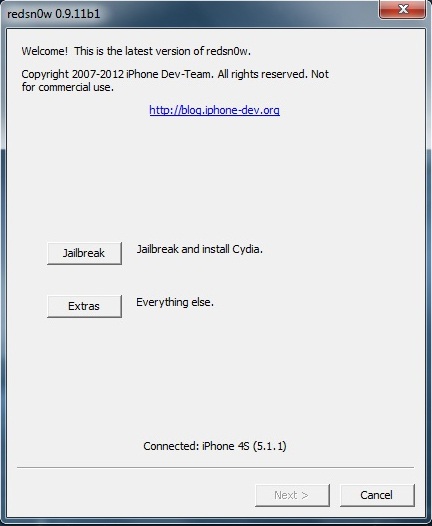
Click Extras.
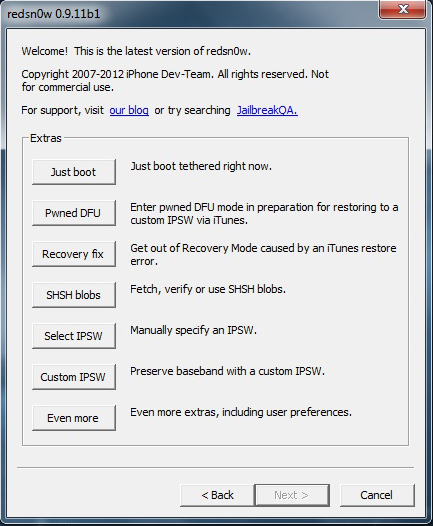
Click Even more.
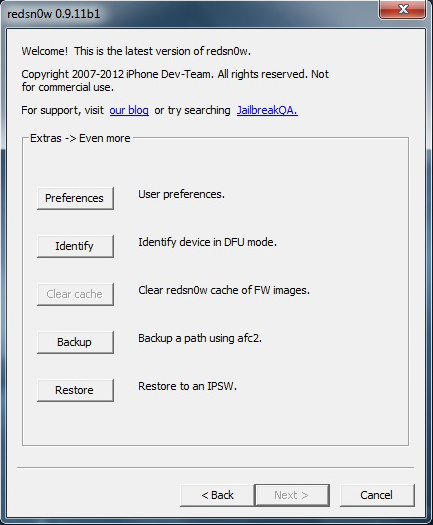
Click Restore.
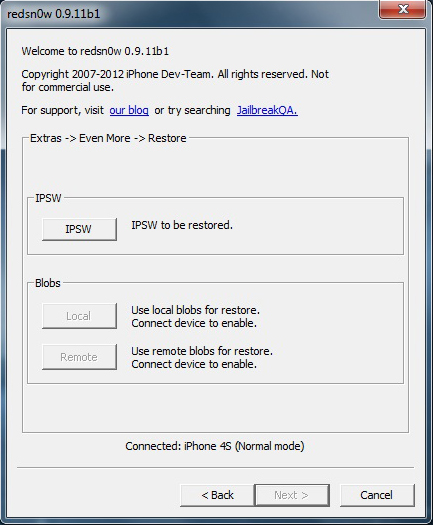
Click IPSW button and select the firmware (iOS 5.0.1) you want to downgrade. Once you locate iOS 5.0.1, Redsn0w will ask you for the latest firmware iOS 5.1.1.
Note:
You need your SHSH blobs saved in order to downgrade. If your iPhone 4S or iPad 2 have launched Cydia before, Cydia server should have saved the SHSH blobs for you automatically.
This guide works for A5 devices only.
If you are a iPhone unlocker, do not downgrade iOS with this guide because it will update your baseband.
Tools you need:
SHSH blobs, either saved on Cydia or computer locally
iOS 5.0.1 and iOS 5.1.1 firmwares
Redsn0w ( Mac / Windows )
30-pin USB connector cable
Let's begin:
Download iOS 5.0.1 and 5.1.1 firmwares.
Download and Run Redsn0w 0.9.11 beta 2 ( Mac / Windows ) as administrator.
Connect your iOS device to computer with 30-pin USB connector cable.
Click Extras.
Click Even more.
Click Restore.
Click IPSW button and select the firmware (iOS 5.0.1) you want to downgrade. Once you locate iOS 5.0.1, Redsn0w will ask you for the latest firmware iOS 5.1.1.
Under Blobs section, click Remote if you have jailbroken your iOS device before because Cydia automatically saved your SHSH blobs. Click Local, if you have saved your SHSH blobs on your computer.
Click Next and let Redsn0w do all the jobs.
Done. You've successfully downgraded the iOS.
Click Next and let Redsn0w do all the jobs.
Done. You've successfully downgraded the iOS.