Showing posts with label iPhone. Show all posts

Sunday, July 7, 2013

How To Downgrade iPhone 4S and iPad 2 With Redsn0w [From iOS 5.1.1 To 5.0.1]


Accidentally upgraded iPhone 4S or iPad 2 and "stuck with" the latest firmware which no jailbreak yet? The iPhone Dev Team has released the updated version of Redsn0w tool which allows you to downgrade iPhone 4S and iPad 2's iOS version so that you can jailbreak them again.

Note:

You need your SHSH blobs saved in order to downgrade. If your iPhone 4S or iPad 2 have launched Cydia before, Cydia server should have saved the SHSH blobs for you automatically.
This guide works for A5 devices only.
If you are a iPhone unlocker, do not downgrade iOS with this guide because it will update your baseband.
Tools you need:

SHSH blobs, either saved on Cydia or computer locally
iOS 5.0.1 and iOS 5.1.1 firmwares
Redsn0w ( Mac / Windows )
30-pin USB connector cable
Let's begin:

Download iOS 5.0.1 and 5.1.1 firmwares.
Download and Run Redsn0w 0.9.11 beta 2 ( Mac / Windows ) as administrator.
Connect your iOS device to computer with 30-pin USB connector cable.
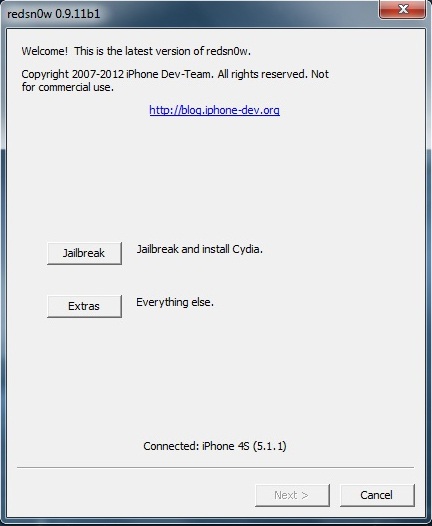
Click Extras.
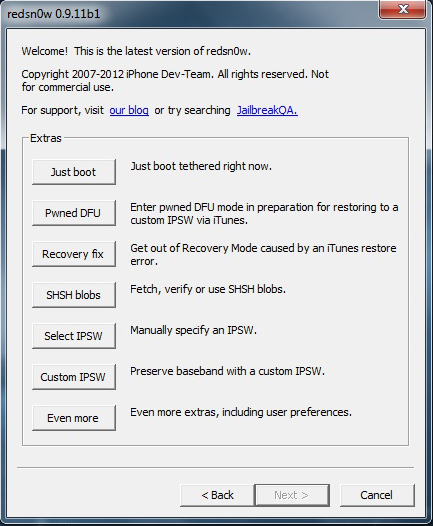
Click Even more.
Click Restore.
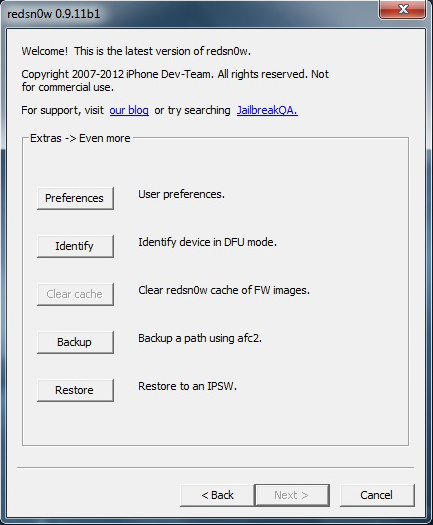
Click IPSW button and select the firmware (iOS 5.0.1) you want to downgrade. Once you locate iOS 5.0.1, Redsn0w will ask you for the latest firmware iOS 5.1.1.
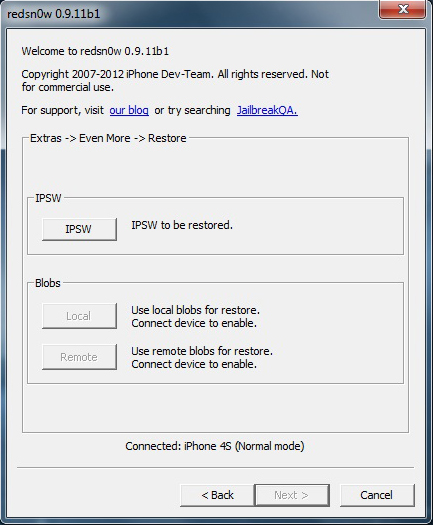
 
Under Blobs section, click Remote if you have jailbroken your iOS device before because Cydia automatically saved your SHSH blobs. Click Local, if you have saved your SHSH blobs on your computer.
Click Next and let Redsn0w do all the jobs.
Done. You've successfully downgraded the iOS.


How To Add Custom Ringtones On iPhone


The choice of ringtones on Apple iPhone are very less. The official way to add your favourite ringtone to iPhone is purchase ringtones via iTunes Store. But the iTunes do not provide music or tones purchasing service in every country. So how are we able to use custom ringtones on iPhone?

Your ringtone file must be .m4r file extension because iPhone reads .m4r as ringtone file. You can find .m4r ringtone from many sources. Example: Zedge, there are tons of free iPhone ringtones for download.


Look for a ringtone you like on Zedge and click Import to iTunes button to download which is in .m4r format.
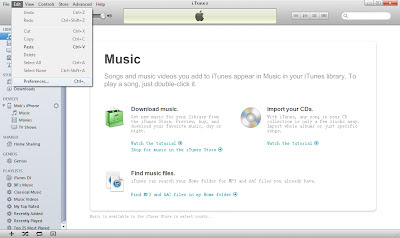
Open iTunes, click Edit and then Preferences.


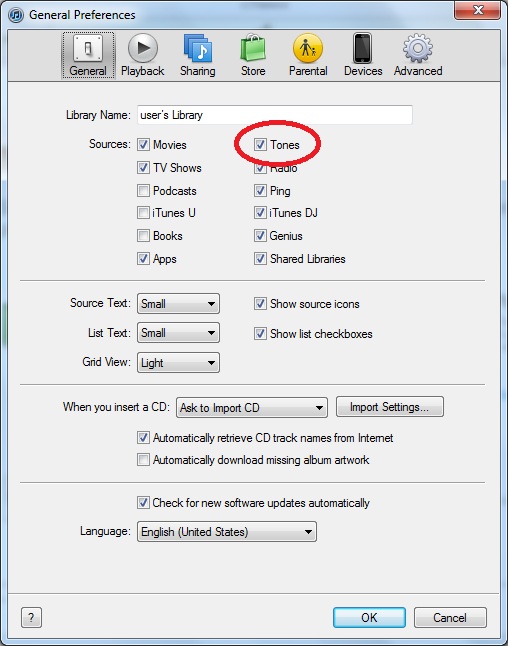
Tick Tones box and click OK.


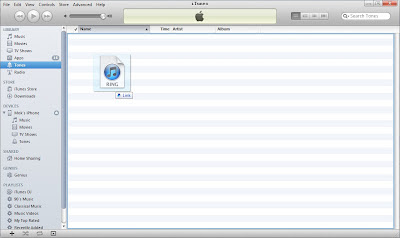
Back to iTunes main screen, the new Tones options will appear under Library. Drag and drop your .m4r ringtone into Tones folder.


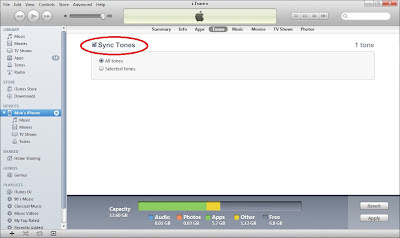
Plug in/connect your iPhone, select Tones tab and tick Sync Tones box. Click Apply to start syncing.


When it is done, the new ringtone is already stored on your iPhone (Settings > Sounds > Ringtone).
 

Tuesday, June 11, 2013

How to Delete Apps from iPhone 5


When you download and install various apps in your iPhone 5, you intend to use them, but there are many apps that are not in your use for a long time and you find them quite useless. These apps may include Twitter, Facebook, Latitude, iShareFiles, PvZ, Netflix or LEGO HP, etc. The apps no longer in your use should be deleted from your Smartphone as these can cause filling up the storage space of your iPhone 5.

It is not a complicated task to delete the useless apps from your iPhone 5. First thing is to decide which apps are no longer in your use and should be deleted. Make a list of these apps and then follow the easy and handy method given below.
Steps to Delete Apps from iPhone 5

1. To delete the unnecessary apps from your iPhone 5, you need to go to the “Home Screen” where you can find the icons of these unnecessary apps you do not want to use any more.

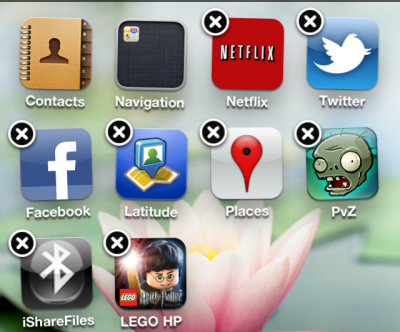
2. Now click and hold the icon for a few seconds until a wiggling appears in the icon. You will also see the sign of “X” on some of the next apps, once you hold the icon for a short while. The image given below can show you how the “Home” screen icons will appear in front of you after this operation.


3. Now you just need to click the “X” sign that appears on the upper corner of every app. The sign appears to delete the application and you can delete it by clicking the “X” sign.

4. Now, all of the unnecessary apps have been removed from your iPhone 5 permanently and you do not need to bother about their existence on your Smartphone any more.

5. Click the “Home” key to save these changes you have made to your iPhone.

That’s all! It did not take you more than two minutes to delete the useless apps from your Smartphone. You will see that by deleting the icon from your “Home” screen, you have deleted the complete program and its data from your iPhone 5. Now you have gain more storage space on your iPhone and you can download and install more apps.


PLEASE SHARE MY SITE WITH YOUR FRIENDS.....It will cost you nothing but huge SUPPORT for me

Copyright Text

Copyrights © 2012 Khulna Store, All Right Reserved
Powered by: Khulna Store